Choose the best photo for your AI car reveal
Lighting, framing, outfit and file checks that give your portrait a clear starting point for the golden-hour reveal.
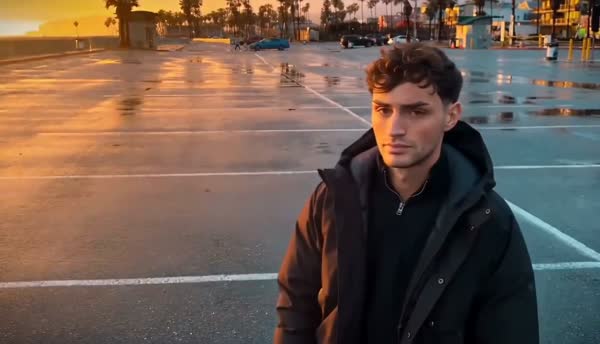
Start with a face you can actually see
Choose one adult facing toward the camera, with the whole face visible. Avoid sunglasses, hands across the face, masks and hair covering the eyes. A side profile gives the generator less visible information about the front of the face.
Open the photograph at its normal size. If you cannot distinguish the eyes, nose and mouth without guessing, choose a clearer image. Enlarging a blurred photo does not recover missing detail. Heavy beauty filters and face reshaping also make it harder to judge whether the final clip resembles the source.
Use even light and a simple frame
Soft, even light keeps both sides of the face readable. A window-lit portrait or an outdoor photo away from harsh backlight can be a useful starting point. Very bright light behind the head may leave the face dark; strong overhead light can hide the eyes in shadow.
A head-and-shoulders or waist-up image leaves room for the face and some clothing. Keep the head away from the very edge. You do not need to photograph yourself beside a car or hold cards: the selected video template supplies the scene and action.
Think about the outfit, too
Your source photograph can influence how clothing appears, so use an outfit you would be happy to see in the finished reveal. Clearly visible, uncomplicated shapes are easier to assess than tiny text or intricate patterns. The generated outfit can still change.
If likeness matters more to you than a particular outfit, prioritize the clearest face. You cannot lock individual garment details, hand positions or card timing in this studio. A fresh creative attempt uses another video credit, so changing several inputs at once also makes results harder to compare.
Check the file before uploading
Accepted formats are JPG, PNG and WebP. The limit is 10 MB, and the image must be at least 256 × 256 pixels. The browser checks whether the file can be decoded and prepares a JPEG for upload, scaling very large images down to a maximum side of 2,048 pixels.
If your phone exports HEIC, use its photo or export tool to save a JPEG first. Renaming a .heic extension to .jpg does not convert the image. If the upload fails, read the specific error before trying a smaller or different photograph.
- One consenting adult, with no other faces in the frame.
- Visible eyes and facial features, with no strong blur or heavy filter.
- Enough room around the head and shoulders.
- JPG, PNG or WebP, within the file-size and dimension limits.
Review the selected image before continuing
The upload panel shows a thumbnail after preparation. Check that it is the person and photograph you intended to use. Click the upload area to replace it, or choose Remove photo before selecting another file.
Your selected photo stays in place during the inline email sign-in flow. Google sign-in temporarily saves the selection on your device so it can return with you. Once the draft is saved, find it in My videos. Uploads are private and are not added to a public gallery.
Ready for your own reveal?
Watch the full example, choose a portrait and review your pack before payment.
Upload my photo ↗